
DNS filtering and what it can do for you
DNS is not just a domain resolution protocol. Today it does a whole lot more than just help systems find resources across the network or over the internet. Most of us rely on it to do everything from resolving www.google.com to a specific IP address so that we can search something in a browser, to relying on it for Adobe’s licensing mechanism to resolve licensing servers and confirm that your subscription of Adobe Cloud is valid. Yet, it also plays an important role in other aspects our day-to-day online activities, because it is used not just by legitimate sites and for useful (to you) purposes, but also by advertisers, online trackers and hackers.
This is where DNS filtering comes in. It runs all queries through essentially a “DNS firewall” or databases that group all domains in specific categories, apply rules or patterns. Then the system either gets a correct and valid DNS resolution response or connection refused due to no valid DNS response. A screenshot below is a a 30 day statistic for a single Windows computer used for 8 hours a day in a typical office.
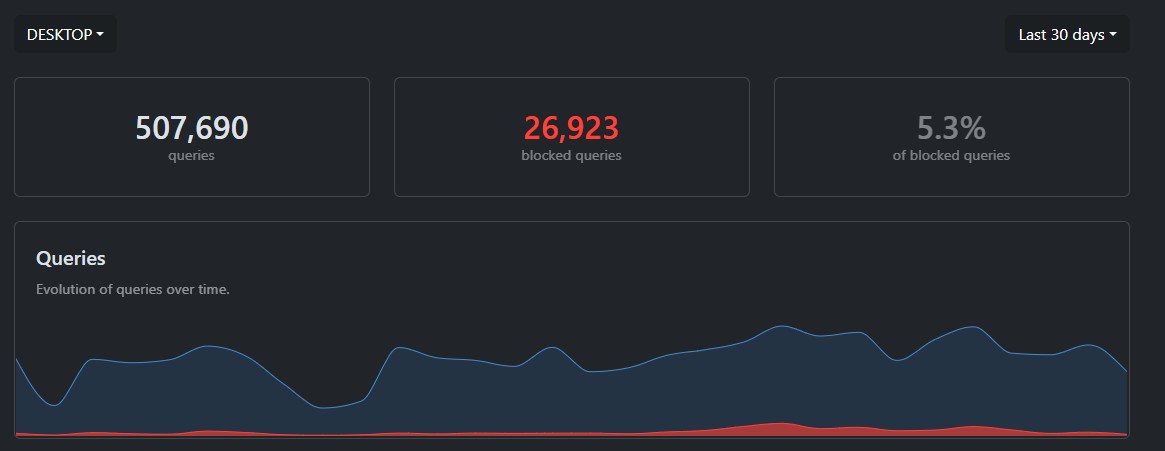
As you can see, in those 30 days it made half a million queries to the DNS servers. That’s a pretty staggering number. What’s more interesting is that almost 27,000 of those queries have been blocked by a DNS filtering software.
What is being blocked? Most of the blocked results are ads and trackers.
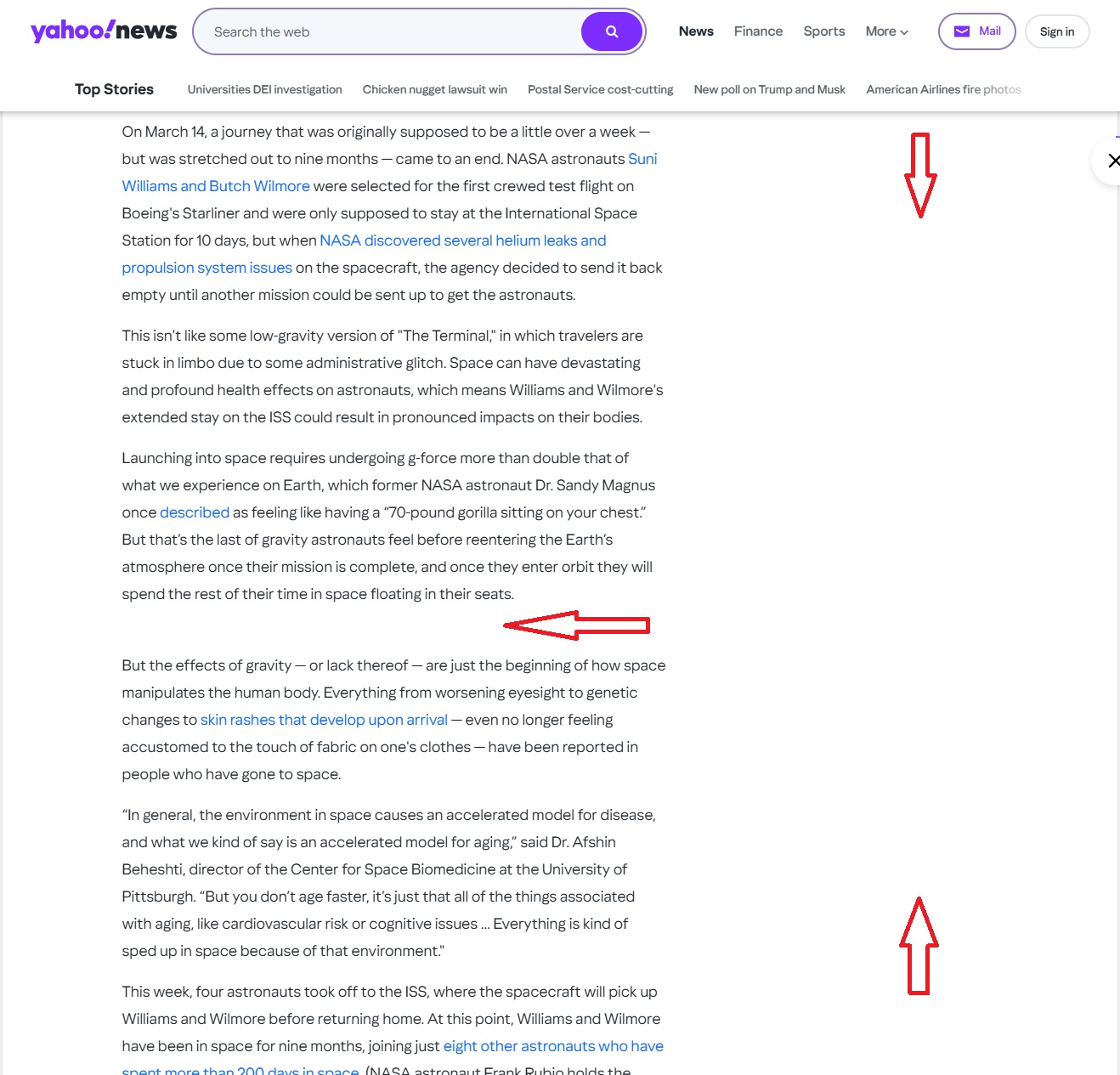
Here is a sample of a random Yahoo.com article. As you can see – there are no ads either in the middle of the text or in the sidebar. This is because DNS filtering is refusing to resolve the addresses of the ad networks, servers and resources. This makes web browsing much more enjoyable. I’m not bombarded with flashing images or auto-playing video. I don’t see distracting ads. All I get is the article itself – just the text.
This of course has a secondary benefit as well. Since my browser doesn’t need to load those items, which include images, text, video players, etc. – the page actually loads faster.
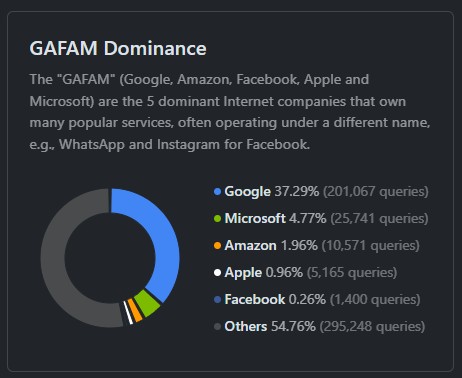
A less obvious part of what is being filtered out are the trackers. That Yahoo page has trackers from every major corporation like Google, Facebook and others. They all use cookies, tracking images, call-backs or other techniques to collect information about sites you visit. Then they use this information to create a profile about who you are, your age, gender, interests, online habits and other information that helps them identify you as a unique person and then deliver highly targeted ads or sell that information outright. You can’t see those trackers, but they are present on the vast majority of websites. 37% of all those queries are to Google and not because someone is using the search engine a lot, but because they have trackers on pretty much every page of every site. This is mostly via their AdSense advertising network. It can also block uploading of your software telemetry and use statistics, which is enabled by default in Windows, Mac, Chrome, Mozilla, Nvidia, Adobe, and many other systems or applications.
It works on
- Windows
- Mac
- Mobile (phones, tablets)
- TVs
- Other network devices
It provides
- Ads filtering
- Added privacy by removing trackers
- Added privacy via DNS encryption
- Security via DNSSEC
- Threat blocking
Uses
- Personal and Workplace security
- Parental controls for kids’ online safety
- Per device/group custom profiles
- Traffic and usage monitoring
- Reporting and analytics
It works while you are on your local or remote network. Even if you are no longer at your home, the laptop, phone or tablet will still be connected and apply policies when you are traveling!
Some of the blocked DNS quries are to malicious domains that are known to serve malware, command-and-control systems, or other security risks. This particular system is also configured to block all new domains, becuase they are often used in phishing attacks or to bypass security software that relies on an existing domain or address classification. If there is no classification some softwarewill allow the connection. But not when new domains are blocked via DNS. Even if the user infected their computer with a malware from a USB drive and it tried to connect to a server to download a payload or receive instructions – most of those connections would be blocked and the attack would be thwarted.
You can also use DNS filtering to create specific configurations for different users or devices. On a business network you may want to block things like pirated software so no one downloads it and puts the company at risk. At home you can configure it to only resolve “child friendly” resources and even force search engines or YouTube to enforce a mode that prohibits adult content. One can also add specific sites to the blocked or allowed list in order to really customize what can be accessed or perhaps enforce those rules on a schedule.
Remember – this can be done per-device, groups of devices or the whole network.
There are many of these services available with many different features and capabilities. Some are enterprise grade and are quite expensive, others are very inexpensive or completely free. I strongly recommend using DNS filtering because of all the benefits mentioned above. It is not difficult to implement and configure, but the benefits will be apperent immediately – much more enjoyable, cleaner and safer internet.
Long passwords? No, we don’t need them

This image shows an actual message I’ve received when signing up for an account on an online system. As you can see, the system can not accept a 20 character passwords. In the age when passwords are often too weak and do not provide a good protection, a system without a multi-factor authentication (MFA) is designed to only accept passwords of up to 12 characters. Considering the lack of MFA, you really want your password to be strong.
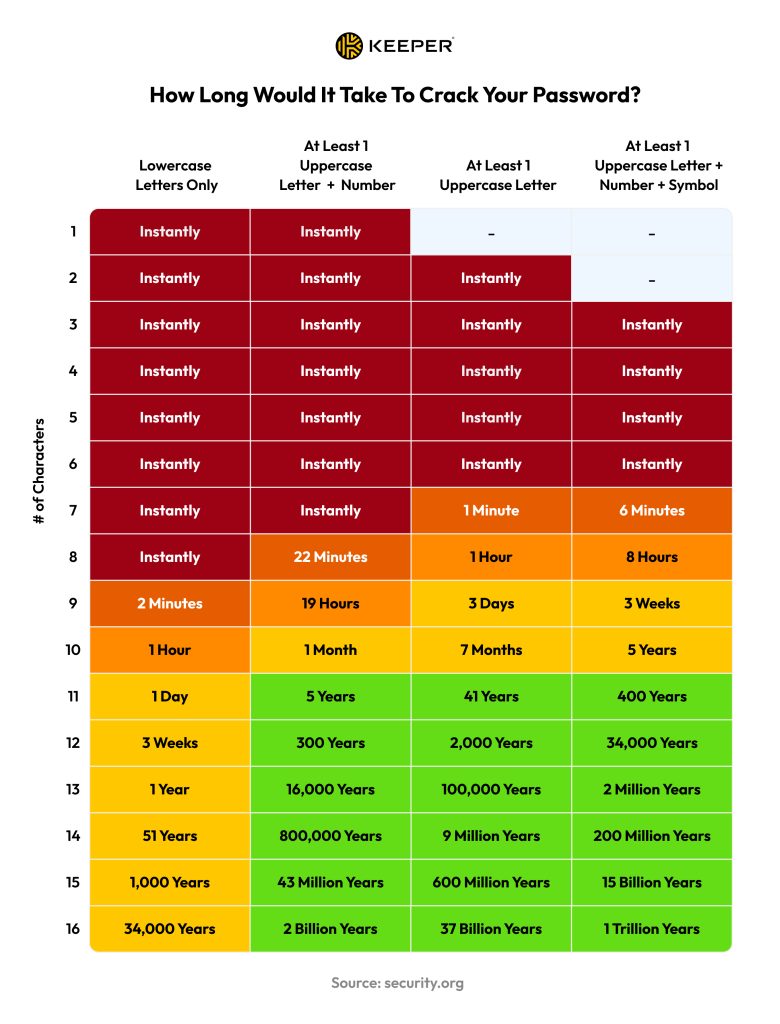
While in theory even a 12 character password can be perfectly adequate and strong enough to keep even supercomputers working for hundreds if not thousands of years, that’s not guaranteed just because of the length.
For example: “midnightstar” will be broken in mater of seconds to week (depending on some variables) because it is dictionary based and has no upper case, numbers or special characters. At the same time “XfgSpoxRwzxQ“, will be many orders of magnitude more secure and considered to be a very safe password. That’s without using numbers or special characters as you’ve noticed. But good luck remembering it. This is why something along the lines of “MidnightStarSablaze!” would be preferred by many. It is infinitely easier to remember, even while being longer.
The image below from Keeper shows relative strength of various kinds of passwords. As you can see the difference between the two variations of the “midnight star” password is 3 weeks and 300 years.
However, “iwentforawalktwodaysago” will take thousands of years, even without complexity rules applied.
So what’s the message here you may ask? It’s simple – give people a choice to use either a shorter password with complexity rules enforced as well as choice for just a long password. Both can protect an account equally well, but one is easier to remember than the other, which makes it that much more appealing.
Do I recommend using all lower case long passwords? No, not at all. I definitely recommend using passwords that are both – long and complex. Because you are using a password manager of some sort, right? Right?